
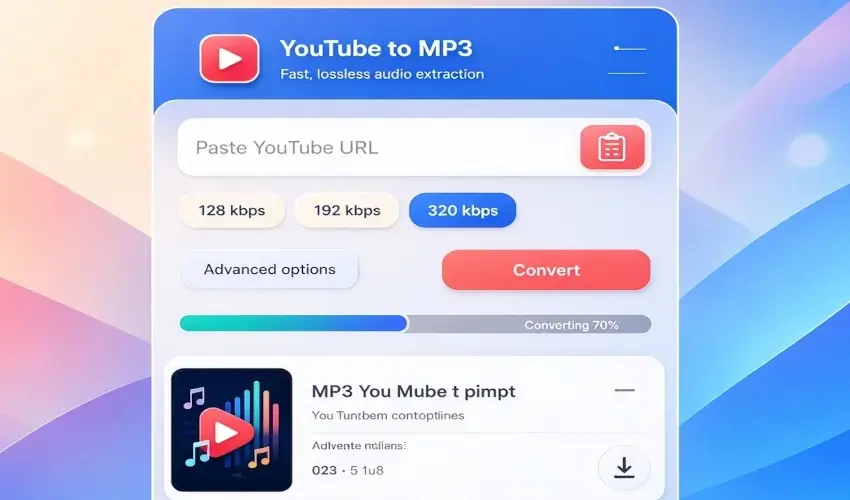
In this useful article, I guide you on how to convert YouTube videos to MP3 using the WebDecky MP3 converter. YouTube has become one of the biggest places on the internet for discovering music, podcasts, interviews, educational content, lectures, speeches, and many other types of videos. Sometimes, however, you may not need the video itself. You may only want to listen to the audio.
This is where a YouTube to MP3 converter can be useful.
If you have a video that you are allowed to download or convert, converting it to MP3 can make it easier to listen to the audio on different devices, save bandwidth, or keep a personal copy for offline listening.
At WebDecky, we have built a simple **YouTube to MP3 Converter** that makes the process straightforward. Instead of installing complicated software or going through a long setup process, users can use the online tool directly from their browser.
In this guide, we will explain what a YouTube to MP3 converter is, how the conversion process works, and how you can use WebDecky to convert eligible YouTube videos into MP3 audio.
What Is a YouTube to MP3 Converter?
A YouTube to MP3 converter is an online tool that extracts the audio portion of a supported YouTube video and prepares it as an MP3 audio file.
For example, imagine you find a public lecture on YouTube, and you want to listen to the audio while travelling. Watching the entire video may not be necessary. If you have the right to download the content, converting it to MP3 can provide a convenient audio-only version.
The same idea can apply to your own YouTube videos, royalty-free content, public-domain material, or other content where downloading and conversion are permitted.
MP3 is also a widely supported audio format, which means it can be played on many computers, smartphones, tablets, music players, and other devices.
Why Convert YouTube Videos to MP3?
There are several legitimate reasons someone might want an audio-only version of a video.
Listen Without Watching the Screen
Not every type of YouTube content requires visual attention. Podcasts, interviews, speeches, lectures, and some educational videos can be enjoyed primarily through audio.
An MP3 file can make this type of content more convenient to listen to.
Save Storage Space
Video files generally require more storage than audio files. If you only need the audio, an MP3 version may take considerably less space than the original video.
This can be particularly useful when managing files on a phone or computer with limited storage.
Convenient Offline Listening
When you are somewhere with a slow or unreliable internet connection, having a permitted offline copy can be convenient.
You can transfer an MP3 file to a compatible device and listen without repeatedly streaming the original video.
Use Audio on Different Devices
MP3 is one of the most commonly supported audio formats. This makes it a practical choice when you want to move audio between different devices or applications.
How to Convert a YouTube Video to MP3 Using WebDecky?
Using WebDecky's YouTube to MP3 Converter is designed to be simple. You don't need to understand complicated technical settings to get started.
Step 1: Open the WebDecky YouTube to MP3 Converter
Start by opening the YouTube to MP3 Converter on the WebDecky website.
The tool is available online, so you can use it through a modern web browser without installing a separate desktop application.
Step 2: Find the YouTube Video
Open YouTube in another browser tab and find the video you want to convert.
Before downloading or converting anything, make sure you have permission to use the content. This is particularly important for copyrighted music, movies, television programs, and other material that you do not own. Also, download videos from Youtube to use WebDdecky Video Downloader tool.
Step 3: Copy the Video URL
Once you have found the appropriate video, copy its URL from your browser's address bar.
A typical YouTube video URL contains the YouTube domain followed by information identifying the video.
You can copy the URL using the normal copy function on your computer or mobile device.
Step 4: Paste the URL Into WebDecky
Return to the WebDecky YouTube to MP3 Converter and paste the copied YouTube URL into the converter's input field.
Make sure the address is complete and belongs to the video you intend to process.
Step 5: Start the Conversion
After entering the URL, use the conversion option provided by the WebDecky tool.
The converter will process the supported video and prepare the audio conversion.
Depending on the video and current server conditions, processing time can vary.
Step 6: Download the MP3
When the conversion has finished successfully, follow the download option provided by the tool.
Your browser will normally save the resulting MP3 file to its default downloads folder unless you have configured a different location.
You can then listen to the file using an audio player that supports MP3.
What Makes WebDecky's Converter Useful?
There are many online conversion tools available, but one of the biggest advantages of a simple web-based tool is convenience.
WebDecky is designed as a broader collection of useful online tools rather than focusing on only one feature. The YouTube to MP3 Converter is part of that collection.
The goal is straightforward: provide a clean experience where users can access useful web utilities without having to install unnecessary software.
For someone who only occasionally needs to convert eligible online videos into audio, an online tool can be more convenient than installing a dedicated application.
YouTube to MP3 on Mobile Devices
You don't necessarily need a desktop computer to use an online converter.
If your smartphone has a modern web browser and an internet connection, you can open WebDecky and use the converter from your mobile device.
The general process remains the same:
1. Find the eligible YouTube video.
2. Copy its URL.
3. Open the WebDecky converter.
4. Paste the URL.
5. Start the conversion.
6. Download the resulting MP3 when available.
The exact download location can depend on your browser and operating system.
Do You Need to Install Software?
One of the convenient aspects of a web-based converter is that you can access it directly through your browser.
For basic conversion tasks, you don't necessarily need to install a separate YouTube downloader or audio conversion program.
This can be especially useful if you are using a shared computer, a temporary device, or a phone where you don't want to install additional applications.
What Can You Use the Converted MP3 For?
The appropriate use of an MP3 depends on the rights associated with the original content.
For content you own or have permission to download, an audio file can be useful for many purposes.
You could listen to your own videos offline, archive your own recordings, keep educational material that is explicitly available for downloading, or work with royalty-free and public-domain content according to its license.
For creators, converting their own published videos to audio can also be useful when preparing content for other platforms or maintaining personal backups.
Is Every YouTube Video Suitable for Conversion?
No.
A video being publicly visible on YouTube does not automatically mean that you have permission to download, reproduce, or redistribute it.
Copyright and platform rules can apply to videos, music, podcasts, films, lectures, and other material.
Before using a converter, consider whether:
- You created and own the content.
- The creator has permitted you to download it.
- The content is available under a license that allows downloading.
- The material is in the public domain.
- Your intended use complies with applicable copyright laws and platform terms.
This is especially important when dealing with commercial music and other copyrighted material.
Tips for Getting Better Results
A few simple habits can make the conversion process easier.
Use the Original Video URL
Whenever possible, copy the URL directly from the YouTube video page rather than manually typing it.
This reduces the chance of entering an incorrect address.
Check the Video Before Converting
Make sure you have selected the correct video before starting the conversion.
This is particularly useful when several videos have similar titles.
Keep Your Downloads Organized
If you regularly convert content that you are permitted to download, create a dedicated folder for your audio files.
You can organize them by creator, topic, project, or date.
Use a Reliable Internet Connection
The conversion process requires an internet connection. A stable connection can make the experience smoother, particularly when working with larger videos.
YouTube to MP3 vs. Downloading Video
The main difference is what you actually keep.
A video download contains both visual and audio information. An MP3 contains audio only.
If you plan to watch the content, keeping the video may make more sense.
If you only need to listen, an audio file can be smaller and more convenient.
For example, a long interview might be watched once but listened to several times. In that situation, an audio-only copy can be easier to manage, provided that downloading and using the content is permitted.
A Simple Tool for Everyday Web Tasks
The internet is full of useful information, but sometimes completing a simple task requires visiting multiple websites or installing additional applications.
WebDecky aims to bring useful web utilities together in one place.
The YouTube to MP3 Converter is one example of a practical tool that can help users handle audio conversion from supported online video content.
Whether you're a creator working with your own videos, a developer testing media workflows, or simply someone who needs an audio-only copy of content that you are permitted to use, a browser-based converter can save time.
Frequently Asked Questions
Is WebDecky's YouTube to MP3 Converter free to use?
The availability and limits of WebDecky's online tools can depend on the current service configuration. Visit WebDecky to see the current converter and its available options.
Can I use the converter on my phone?
Yes, because WebDecky's tools are web-based, you can access them through a compatible mobile browser.
Do I need to install an application?
No separate application is required for basic browser-based use of the WebDecky converter.
Where is the MP3 file saved?
The file is normally handled by your browser's download system. On most devices, downloaded files can be found in the browser's Downloads folder unless you have selected another location.
Can I convert copyrighted music?
You should only download or convert copyrighted material when you have the necessary permission or when your intended use is otherwise permitted by applicable law and the relevant platform's terms.
Can I convert my own YouTube videos?
If you own the videos, converting your own content to an audio format can be a practical way to create an audio copy or backup.
Conclusion
Converting an eligible YouTube video into MP3 does not have to be complicated.
With a browser-based tool such as the **WebDecky YouTube to MP3 Converter**, the basic process is simple: find the video you are allowed to use, copy its URL, paste it into the converter, start the conversion, and download the resulting audio when it is ready.
The real advantage of an MP3 file is convenience. You can listen to audio without keeping the video open, save storage space compared with video files, and move compatible audio between devices more easily.
However, convenience should always go together with responsible use. Not every YouTube video can legally be downloaded or converted. Always respect copyright, licensing conditions, the rights of creators, and applicable laws. If you are looking for a straightforward collection of online utilities, explore WebDecky and try the available tools for your everyday web tasks.



Comments (0)
No comments yet. Be the first to comment!
Leave a Comment